
Present products in a unique way with the Woo Product Accordion!
There are options to include products with their own categories and count. Display the products on hover or on click, accompanied by a lovely animation.
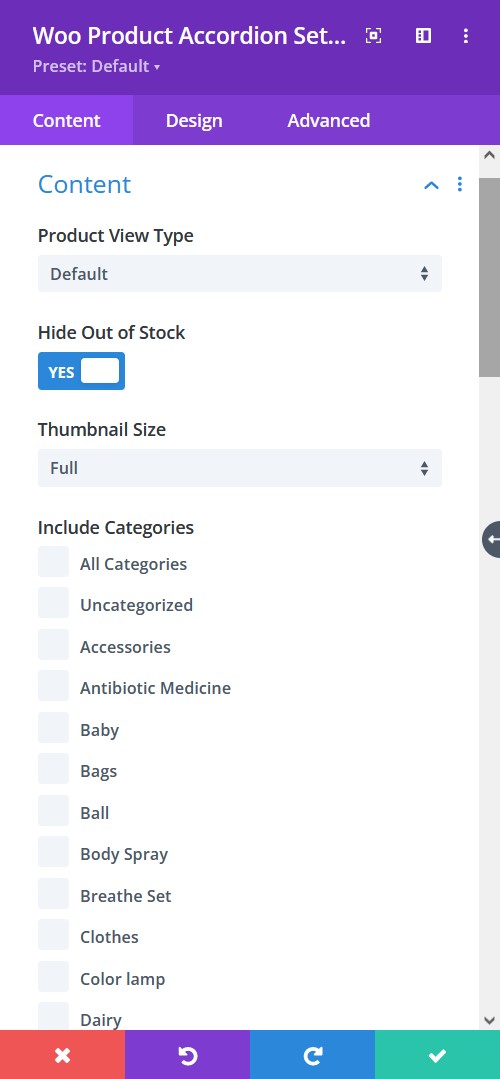
Content tab → Content
- Product View Type: Select a product view type from default, latest products, best selling, and all the way to product category. These will help you define how you want the products viewed.
- Hide Out Of Stock Products - hide or let view the out of stock products
- Thumbnail Size - pick a size for the image thumbnail
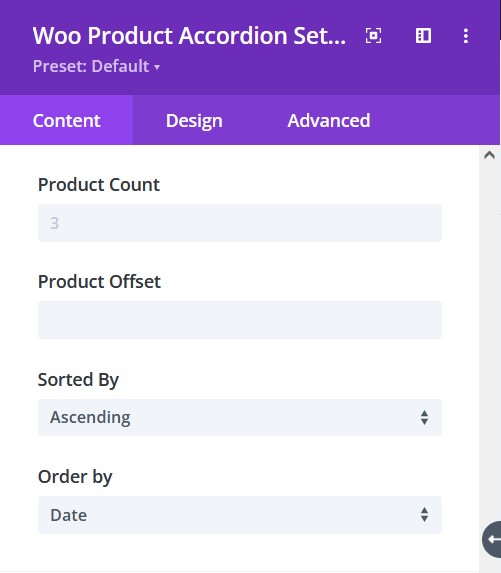
Content tab → Content
- Product Count - enable to show product count
- Product Offset - pick a number for how many products you want to omit from the first
- Sorted by - choose how you want the products to be sorted
- Order By - There are at least 7 ways to order the products, select the one you prefer
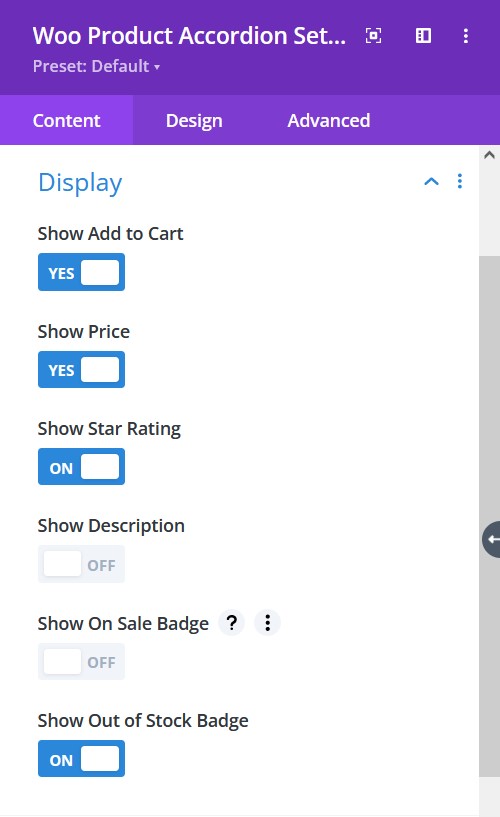
Content tab → Display
- Show Add To Cart - enable to show add to cart
- Show Price - enable to show the price of a product
- Show Star Rating - enable to show the star rating
- Show Description - choose to show description text
- Show On Sale Badge - enable to show On Sale Badge
- Show Out of Stock Badge - enable to show the Out of Stock Badge
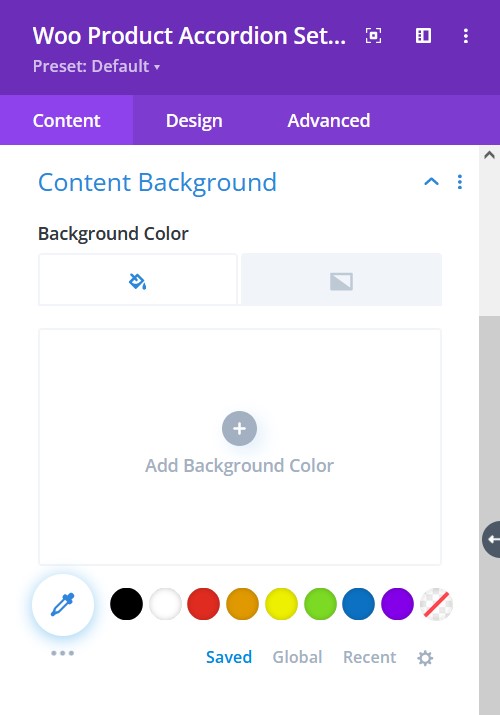
Content tab → Content Background
- Background color - select background fill color or gradient for the content.
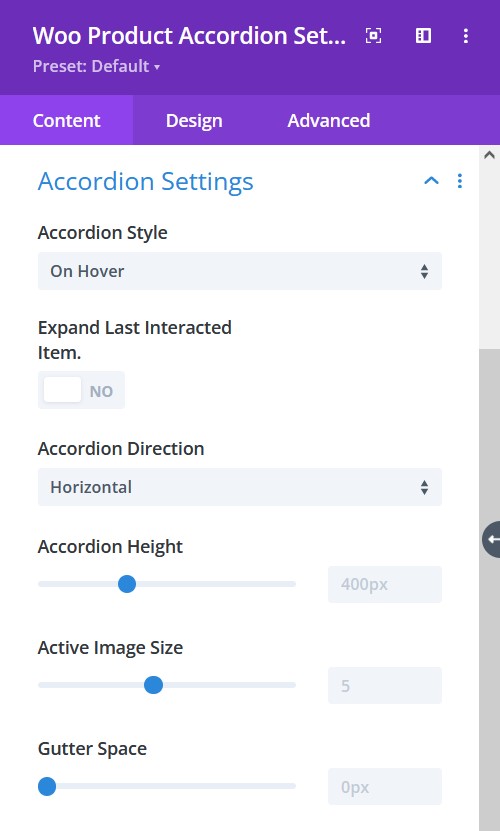
Content tab → Accordion Settings
- Accordion Style - choose the style of accordion
- Expand Last Interacted Item - choose to keep the last interacted item active
- Accordion Direction - select the direction of the accordion to be in
- Accordion Height - adjust the accordion height
- Active Image Size - adjust active image size separately
- Gutter Space - adjust the gutter space using the slider
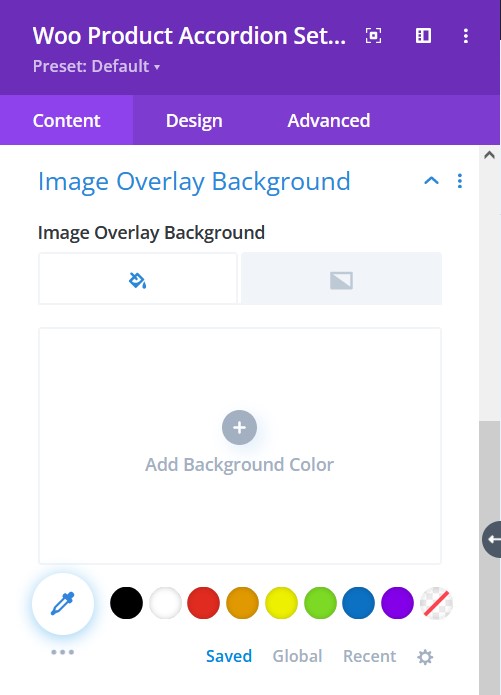
Content tab → Image Overlay Background
- Image Overlay Background - Add an overlay background fill color or gradient on top of the image
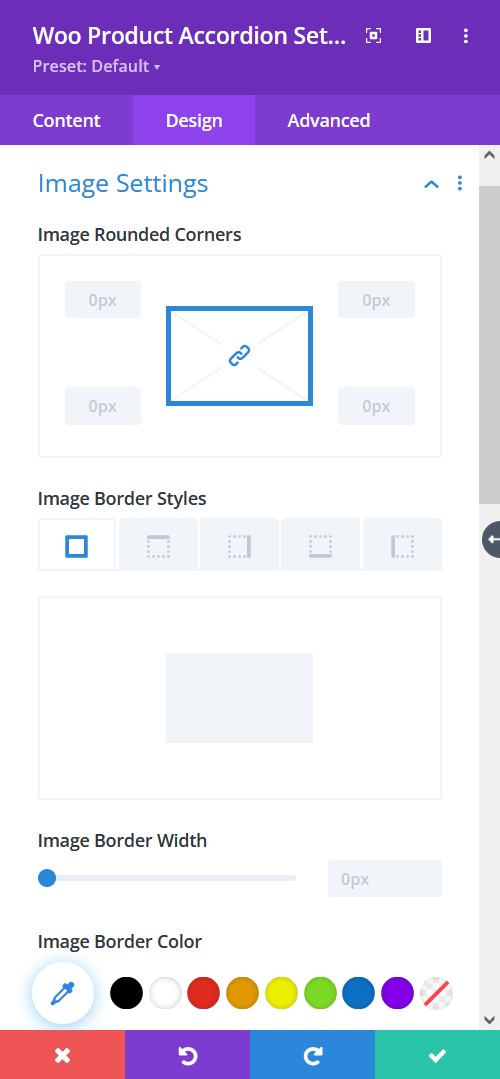
Design tab → Image Settings
- Image Rounded Corners - include rounded corner by adjusting the four corners
- Image Border Styles - add a border to any side you like or have borders on all four sides
- Image Border Width - adjust the width of the border
- Image Border Color - select a color for the border
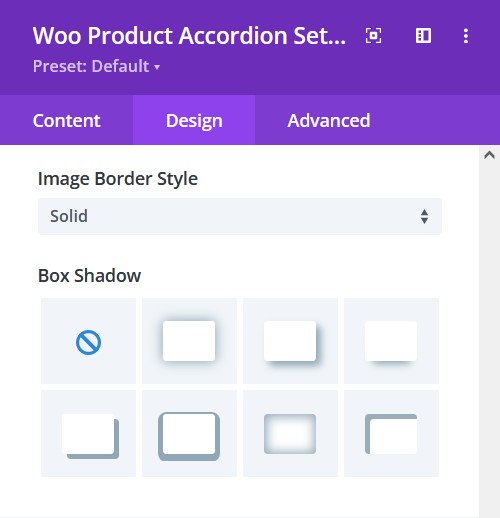
Design tab → Image Settings
- Image Border Style - include a style to the border
- Box-shadow - add a box-shadow to the element
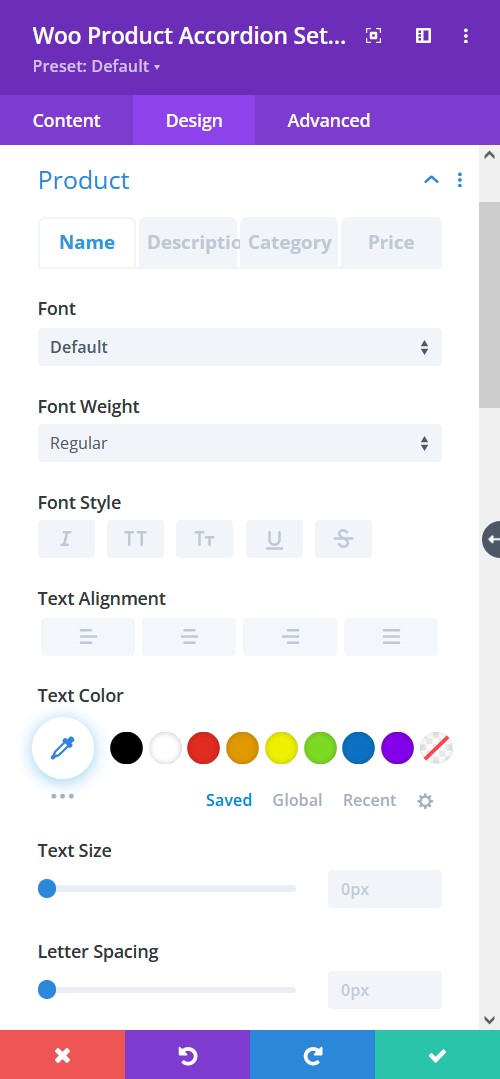
Design tab → Product
- Font - Choose a font. All Google web fonts are available here. You can upload a custom font as well.
- Font Weight - select the weight of the font from Light to Ultra Bold
- Font Style - select a font style from
- Text Alignment - align the text to left, right, or center
- Text Color - pick a color for the text
- Text Size - resize the text
- Letter Spacing - Adjust the spacing between the letters of the text
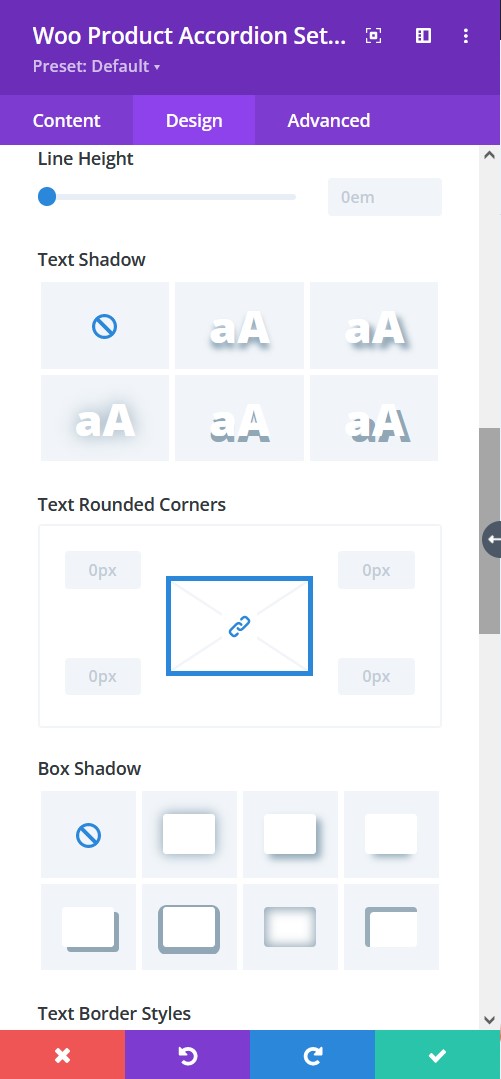
Design tab → Product
- Line Height - adjust the space between multiple lines added to the design
- Text Shadow - add a shadow to the text
- Text Rounded Corners - include rounded corner by adjusting the four corners
- Box-shadow - add a box-shadow to the element
- Border Styles - add a border to any side you like or have borders on all four sides
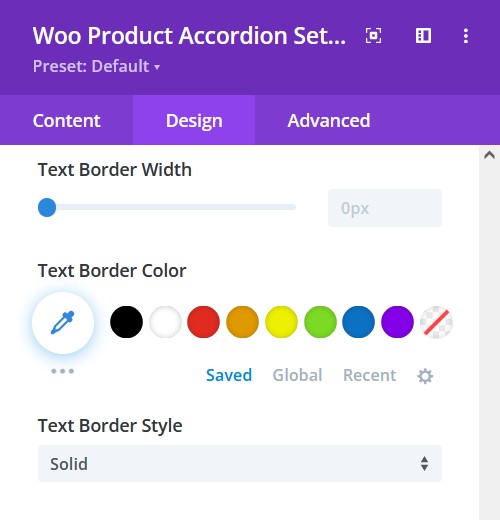
Design tab → Product
- Border Width - adjust the width of the border
- Text Border Color - select a color for the border
- Text Border Style - include a style to the border
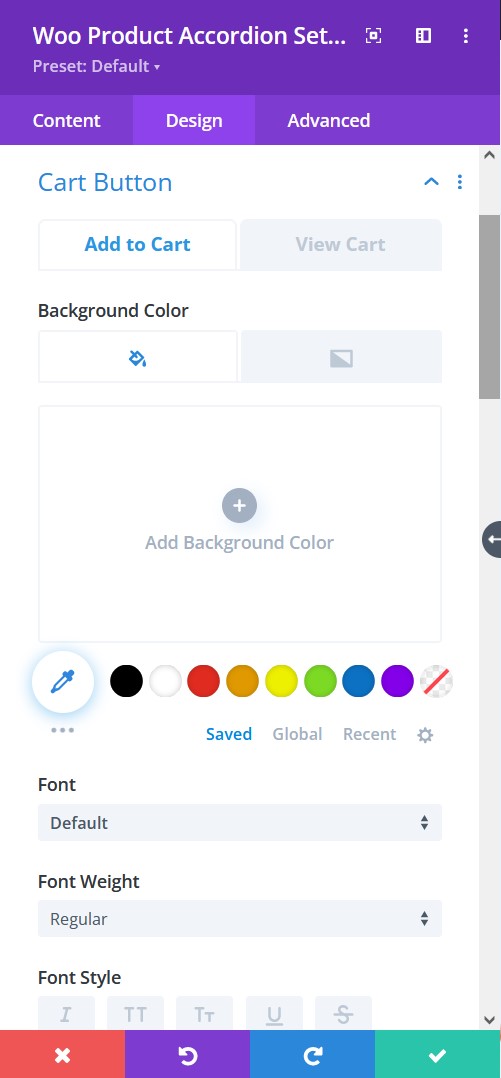
Design tab → Cart Button
- Background Color - Add a background fill color or gradient for the description text
- Font - Choose a font. All Google web fonts are available here. You can upload a custom font as well.
- Font Weight - select the weight of the font from Light to Ultra Bold
- Font Style - select a font style
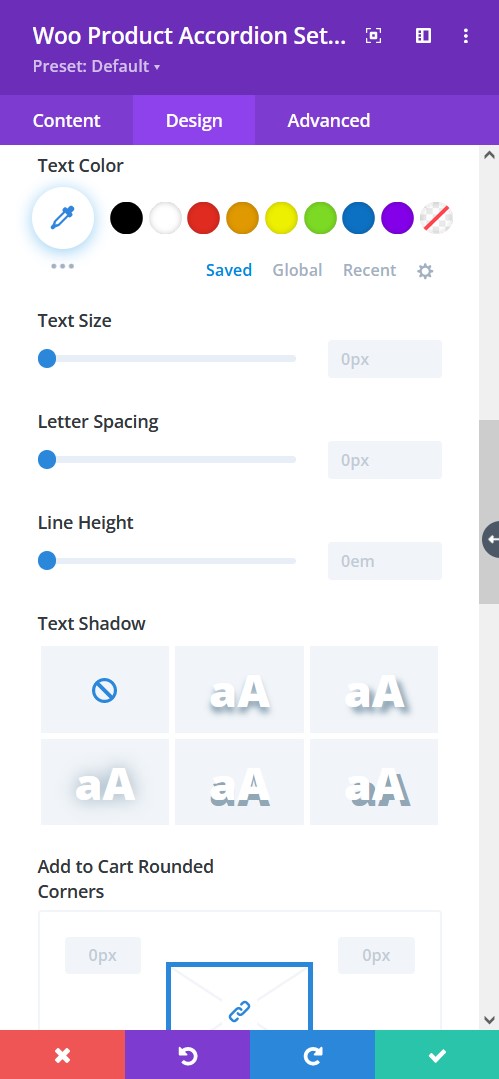
Design tab → Cart Button
- Text Color - pick a color for the text
- Text Size - resize the text
- Letter Spacing - Adjust the spacing between the letters of the text
- Line Height - adjust the space between multiple lines added to the design
- Text Shadow - add a shadow to the text
- Text Rounded Corners - include rounded corner by adjusting the four corners
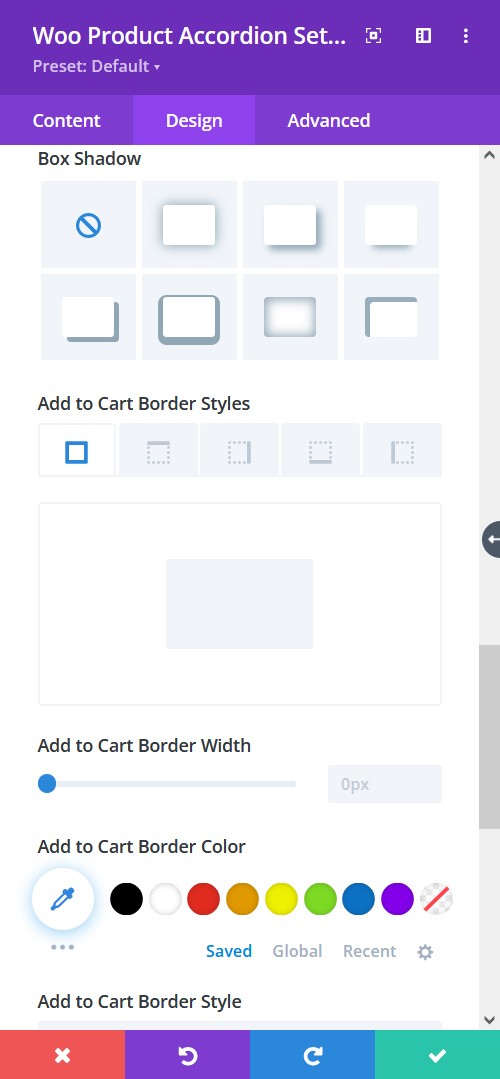
Design tab → Cart Button
- Box-shadow - add a box-shadow to the element
- Border Styles - add a border to any side you like or have borders on all four sides
- Border Width - adjust the width of the border
- Border Color - select a color for the border
- Border Style - include a style to the border
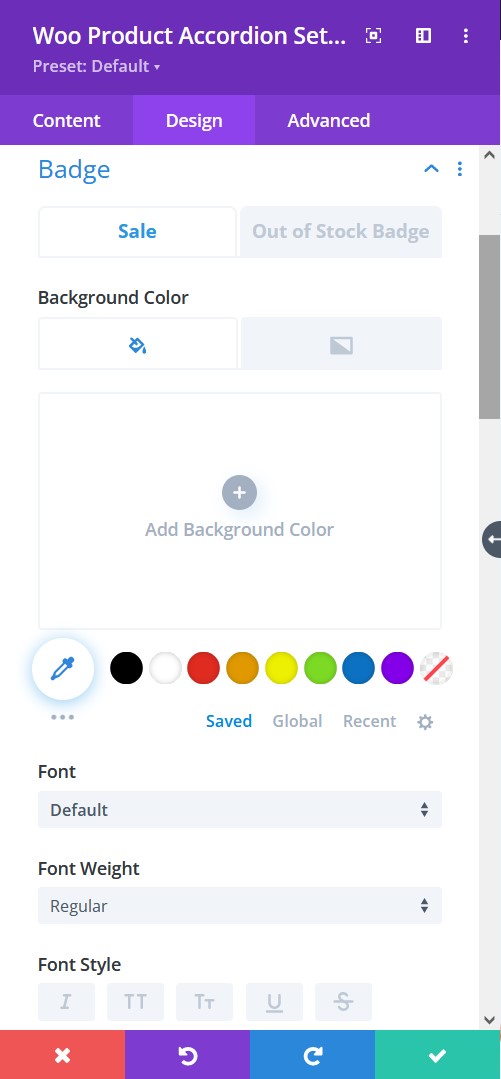
Design tab → Badge
- Background Color - Add a background fill color or gradient for the sale badge
- Font - Choose a font. All Google web fonts are available here. You can upload a custom font as well.
- Font Weight - select the weight of the font from Light to Ultra Bold
- Font Style - select a font style
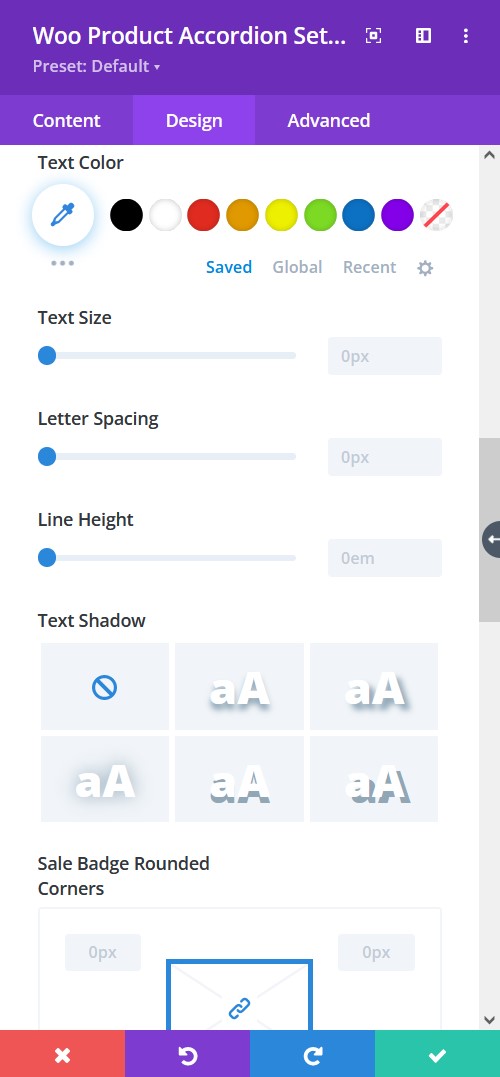
Design tab → Badge
- Text Color - pick a color for the text
- Text Size - resize the text
- Letter Spacing - Adjust the spacing between the letters of the text
- Line Height - adjust the space between multiple lines added to the design
- Text Shadow - add a shadow to the text
- Text Rounded Corners - include rounded corner by adjusting the four corners
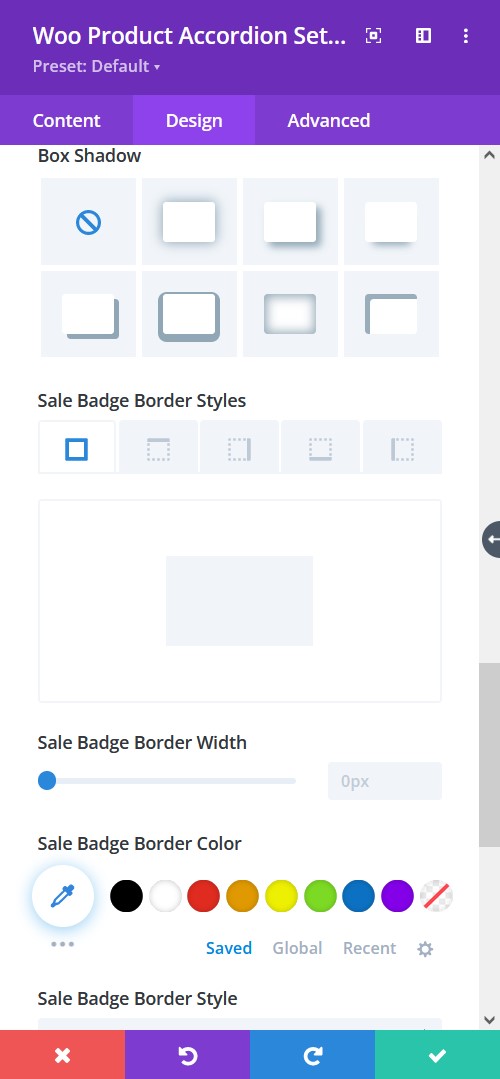
Design tab → Badge
- Box-shadow - add a box-shadow to the element
- Border Styles - add a border to any side you like or have borders on all four sides
- Border Width - adjust the width of the border
- Border Color - select a color for the border
- Border Style - include a style to the border
