

Woo Category Masonry
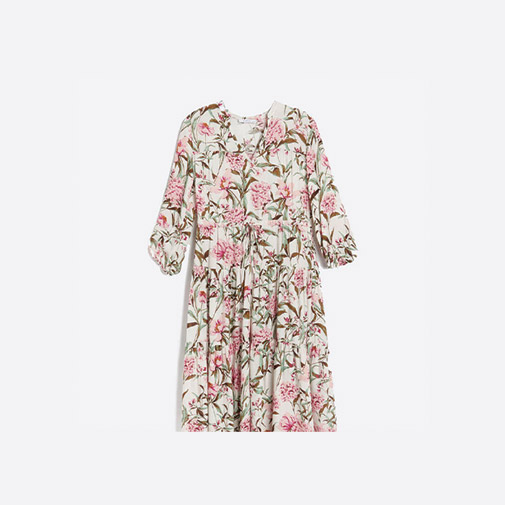
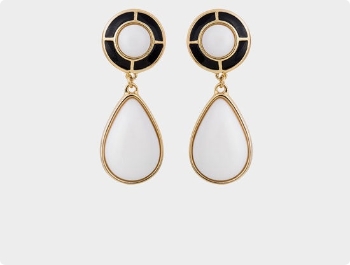
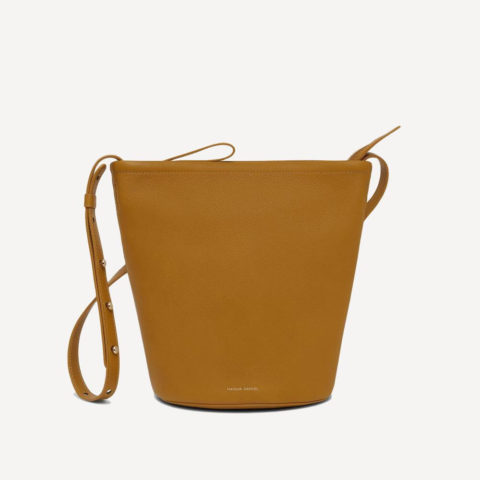
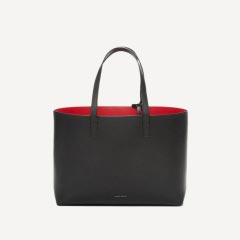
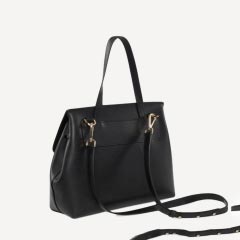
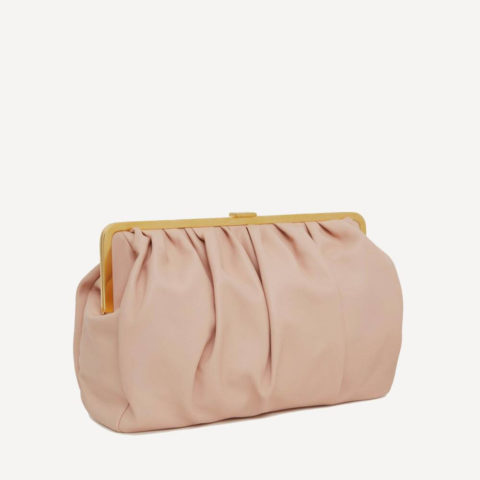
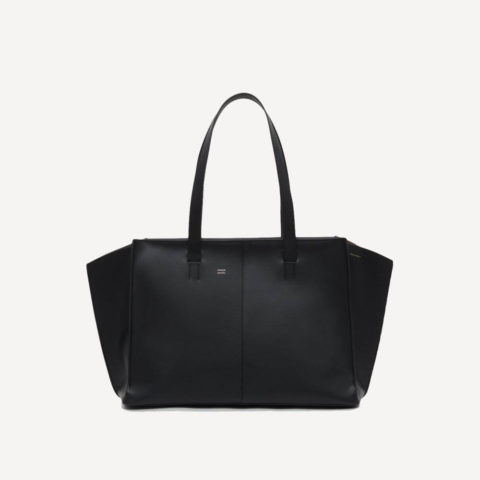
When using the Woo Category Masonry, the products will automatically take on the image size and display accordingly. Categorize and organize the products on your WooCommerce website. The results are stunning!
Main Features
Here are some cool features you are receiving using the Woo Essential Plugin modules.

100% Responsive

Grid System

Content Background

Easily Customizable

Text Settings

Image Settings

Add Shadow, Sizing & More
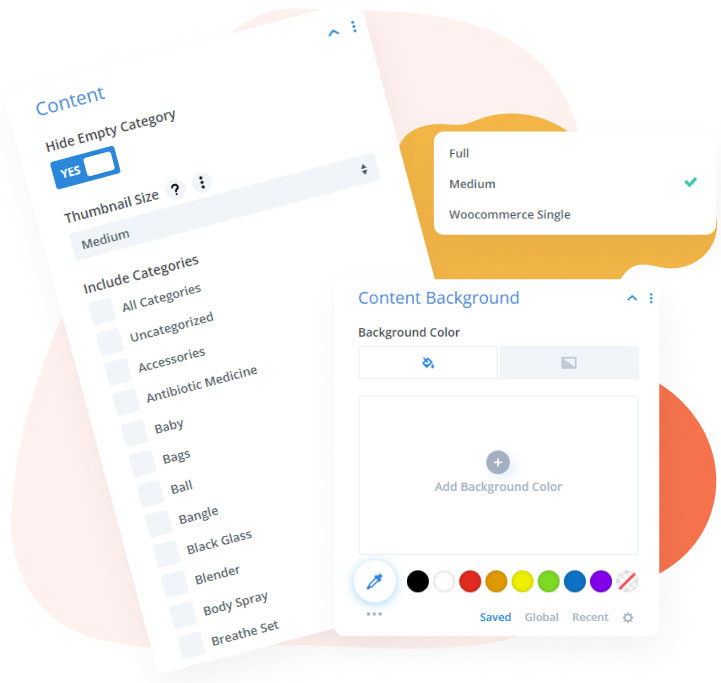
In Woo Essential Product Category Masonry Content and Content Background
The features available within the content and content background make designing ever-so simple. With the functions to choose categories and content background color, you can achieve great design possibilities with just a few clicks.
Explore Product Category Masonry Demo
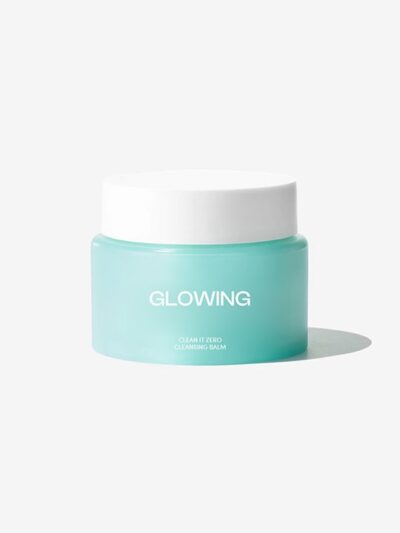
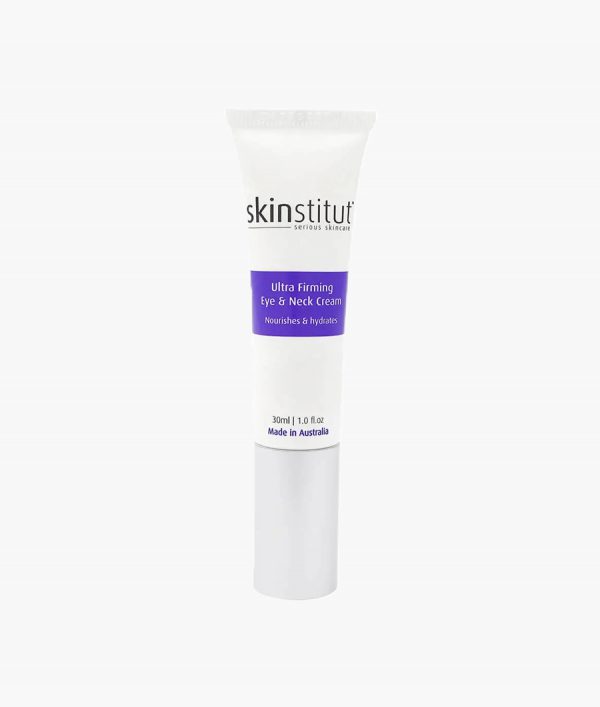
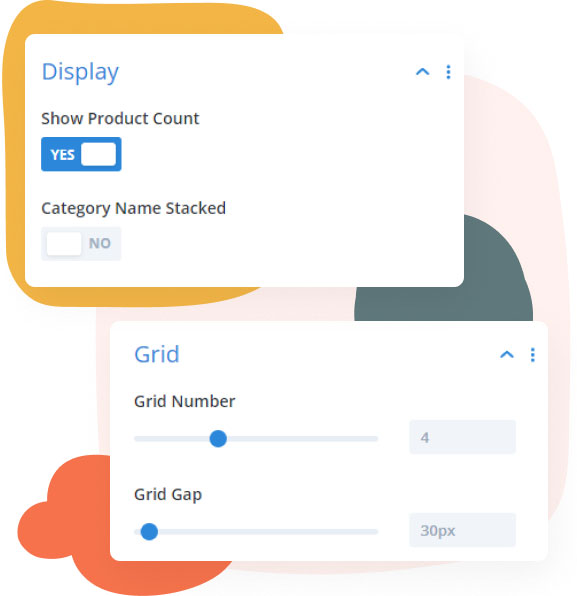
Display Feature and Grid Settings
You can easily enable or disable Display settings for product count and category name stacked. Grid settings allow you to adjust and configure the number of grids and grid gaps between each product.
Explore Product Category Masonry Demo
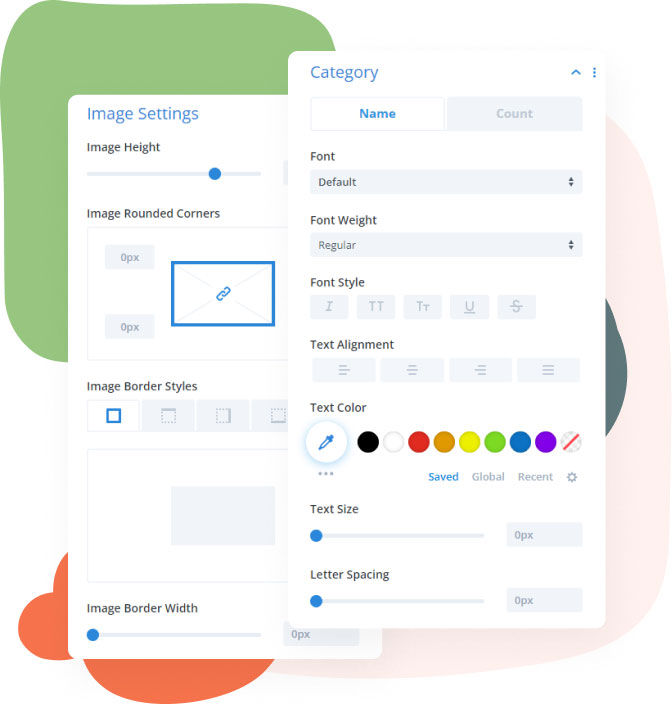
Image Settings and Category Text Stylization
From adjusting image height to adding rounded corners to including cool borders, get all the necessary design tools to achieve a superb design. Typography plays a vital role in designing and we have included text stylizing so you can get more out of using all of our modules within Woo Essential Plugin.
Explore Product Category Masonry Demo

This plugin is an essential part of my web design workflow! It has all the tools I need to help me boost my creativity and overall makes me more versatile! Now I can focus fully on the design-part of every web-creation. Great plugin! Great support-team! I love it!

Wade Warren
This plugin is one of the "must" Divi extensions. It brings so many new options and possibilities in just a few simple clicks. Advanced CSS animations, transitions, and all "WOW" effects that make your site unique. Did I mention their support? Real-time chat with on-the-fly answers and solutions.
Thanks, guys, keep up the good work! Peace!

Jakub Iwo Zalewski
Fully satisfied with my investment! Gotta say I came across a brilliant set of modules within the Divi Essential Plugin! Very user-friendly and loving the adventure going through the 60+ modules! Just wow!
The hard work just shows! The level at which you all are bringing in the new products! Amazing! Truly grateful!

Michael Zakarian
I went for the All-Access Pass and all I can say is Wow. The modules are absolutely amazing. I had a small problem downloading the Woo Commerce modules but the real-time chat support was amazing and had it resolved in minutes, I can't thank you guys enough, and looking forward to any new modules. Definitely worth buying, Highly recommended 5*

Anthony Rose
Design Your Dream Divi Website with Woo Essential
30-Day Money-Back Guarantee, No Questions Asked!
FAQ
Frequently Asked Question
What is the best definition of WooCommerce & Product?
WordPress has an eCommerce plugin called WooCommerce. WordPress users of small and large businesses can use it to build and design their online store. You can now set up your eCommerce/WooCommerce site under Divi Theme.
How do I install my Woo Essential Plugin?
Just like any other third-party plugin/extension of Divi, you have to download the zip file containing the plugin and upload it.
Here’s an instruction:
- After you download the plugin’s zip file > go to your WordPress ‘Dashboard’
- On the left > go down to ‘Plugins’
- ‘Add New’ > ‘Upload Plugin’
- Finally, select the (.zip) file that has the modules
- When the plugin is uploaded successfully, you will need to ‘Save Changes’ > then click on ‘Activate’.
- Enjoy your Woo Essential Plugin!
Here’s a similar video showcasing the installation process:
https://youtu.be/zb6GCQWMP-0
How do I customize my WooCommerce website using Woo Essential Plugin’s modules?
Once you have installed the plugin, all of the modules within Woo Essential Plugin will appear among the default modules in the Visual Builder.
Do I receive support for the Woo Essential Plugin?
For any support for the Woo Essential Plugin, or if you have purchased other DiviNext products, you can always reach out to us via our support email: support@divinext.com
What theme does Woo Essential Plugin use?
The Woo Essential Plugin is made for all Divi users under Divi Theme by Elegant Themes.
How do you provide support?
You can find answers to the Woo Essential Plugin questions in our documentation. Our aim is to provide self-help resources to empower you to manage your site.
Alternatively, you can start a live chat or submit a ticket directly related to the product you need help with via the Help Desk.
Other Divi Modules in Woo Essential Plugin

Product Carousel

Product Grid

Product Accordion

